To look back at the hands you have played, the first step is getting your hand history out of Natural8 and into a file. This post walks through exactly that.
The screenshots come from the Chinese-language client. What matters is where things sit: every control is circled in red, and the alt text names each one.
Start in the Natural8 window — clicking the spot circled in red at the bottom right opens the PokerCraft page.
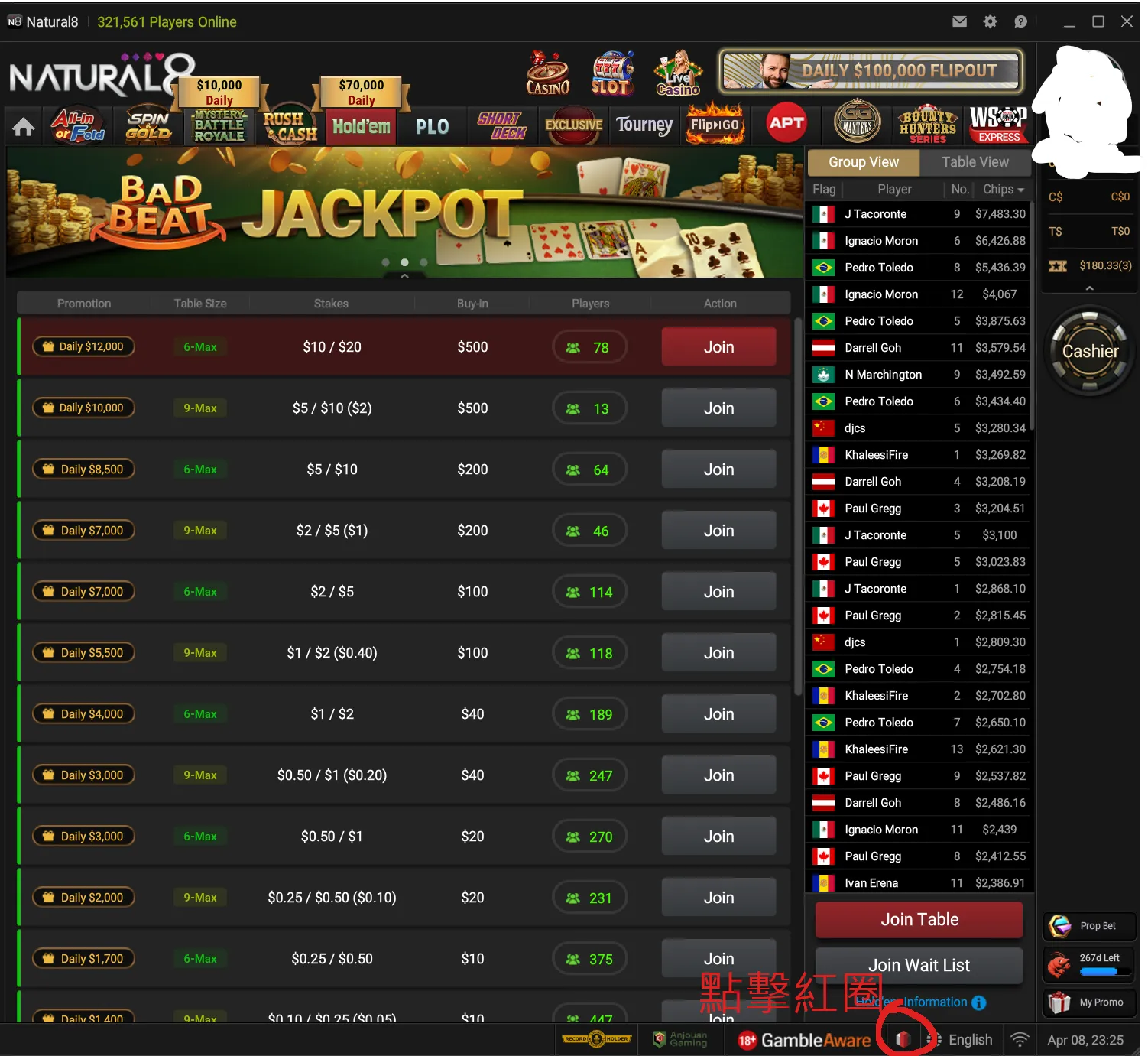
PokerCraft
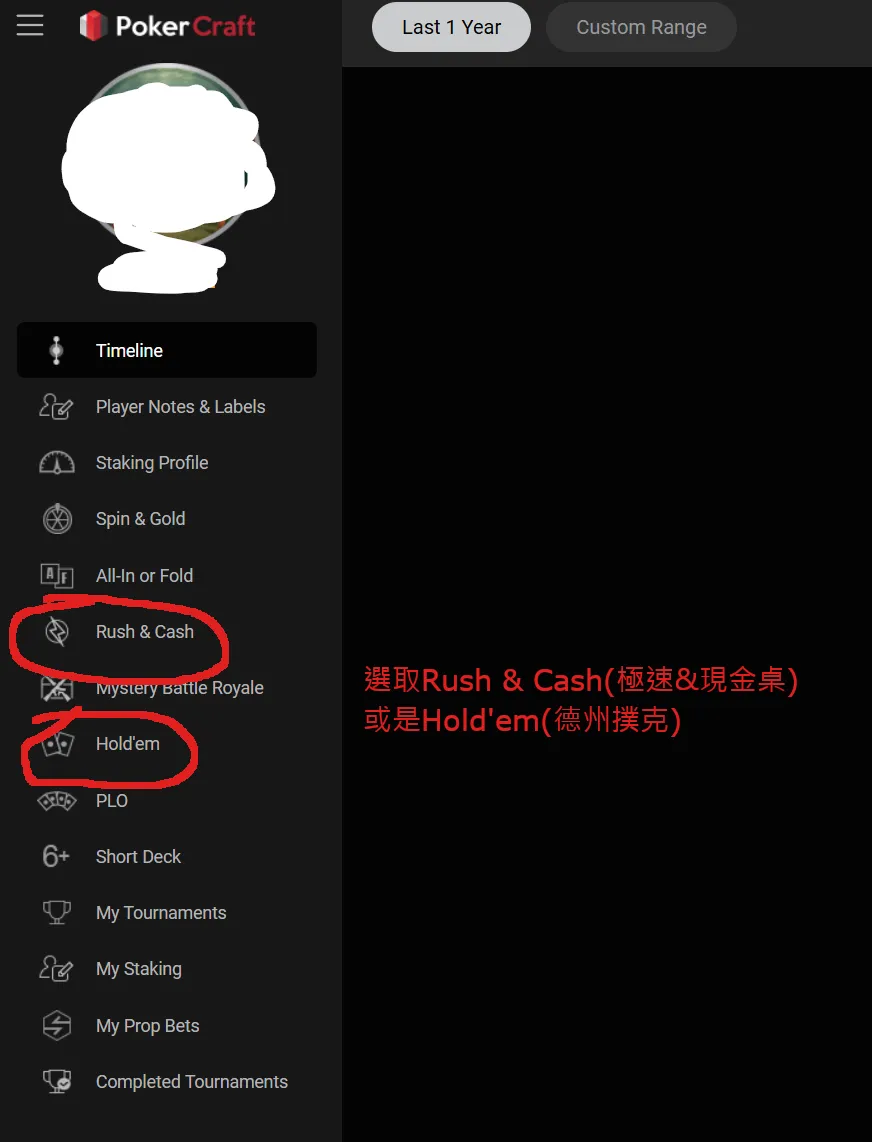
Pick a game type in the left sidebar
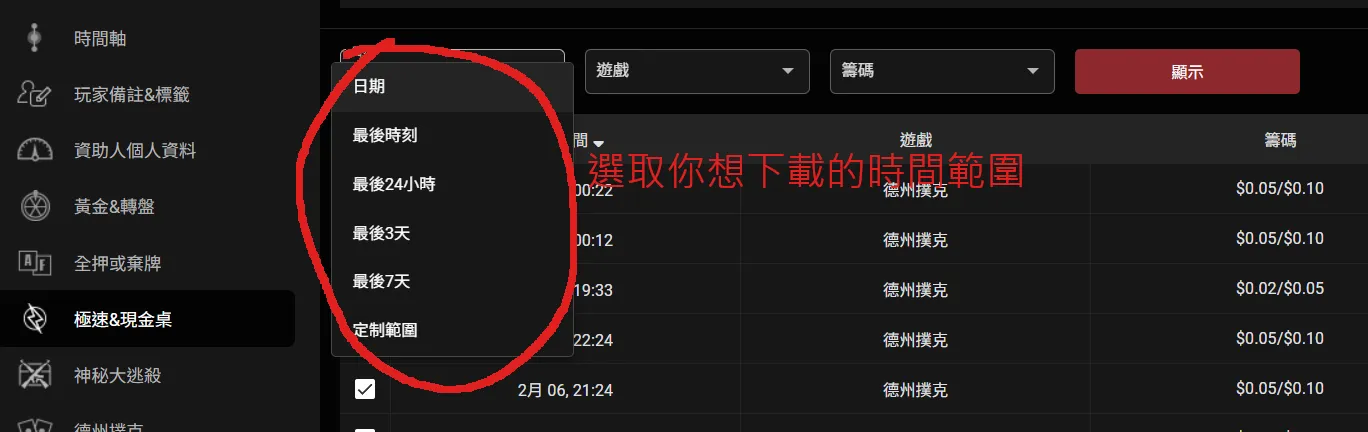
With the game type chosen, set the time range you want to download.
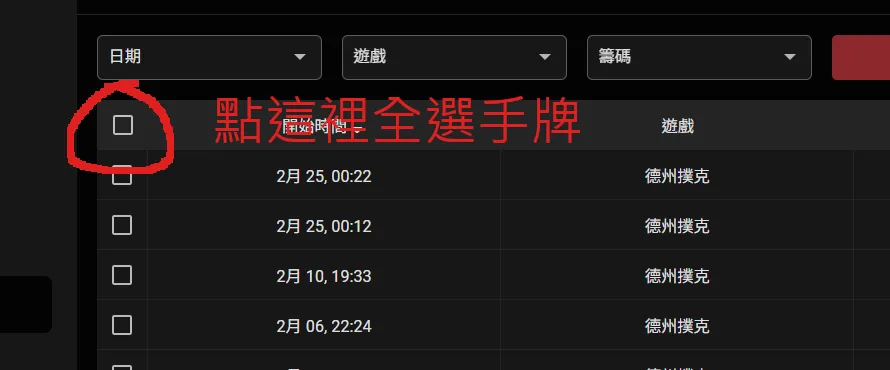
Then tick the select-all box at the top left of the hand list.
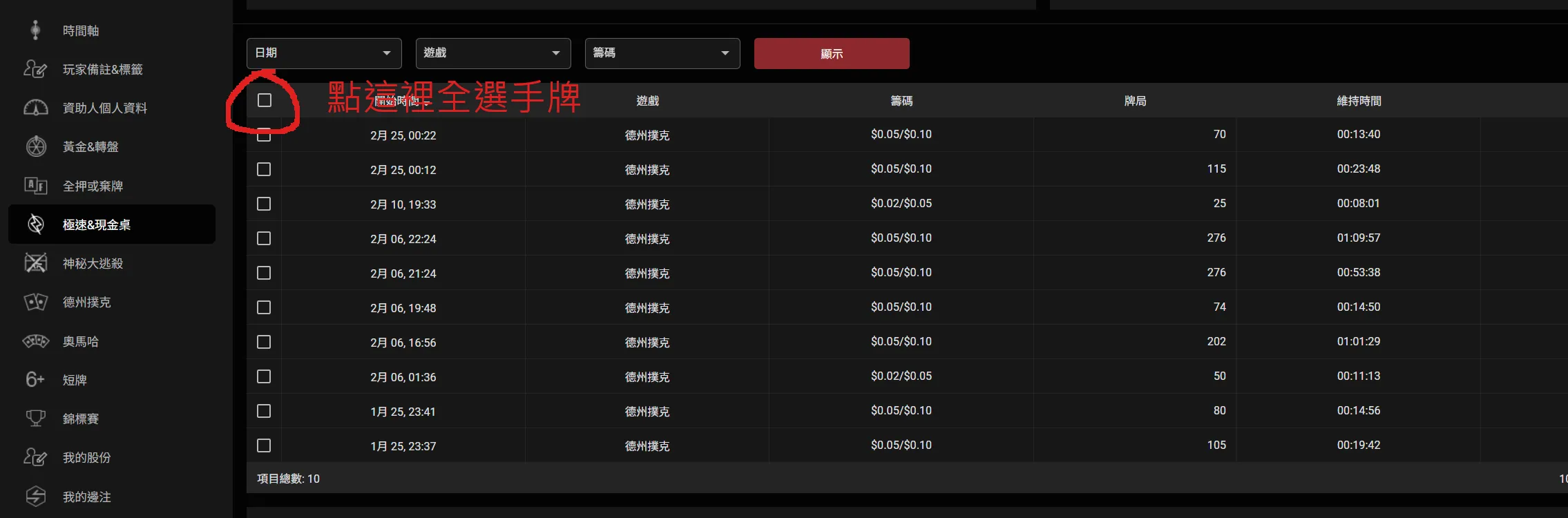
A closer look at that checkbox:
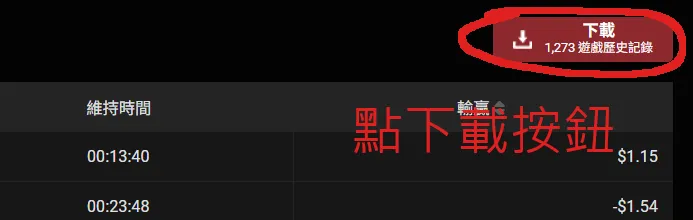
Then click the download button over on the right.
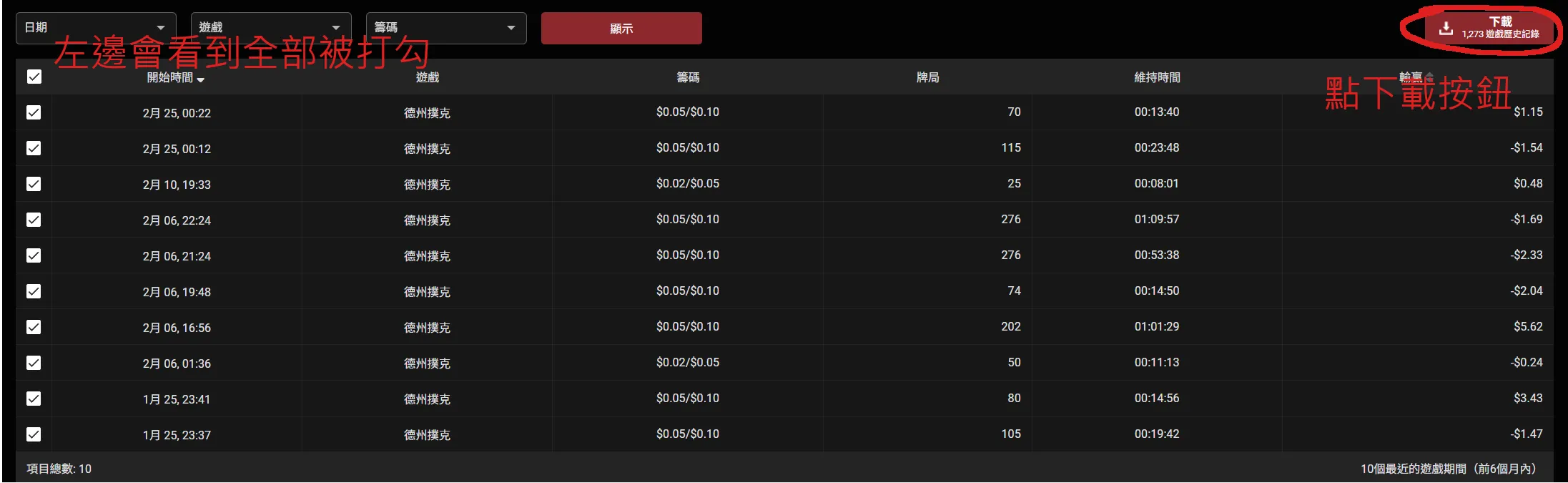
A closer look at the download button:
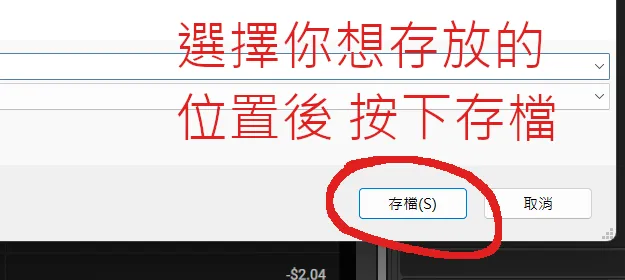
Wait for the save dialog, choose where to keep the file, and save.
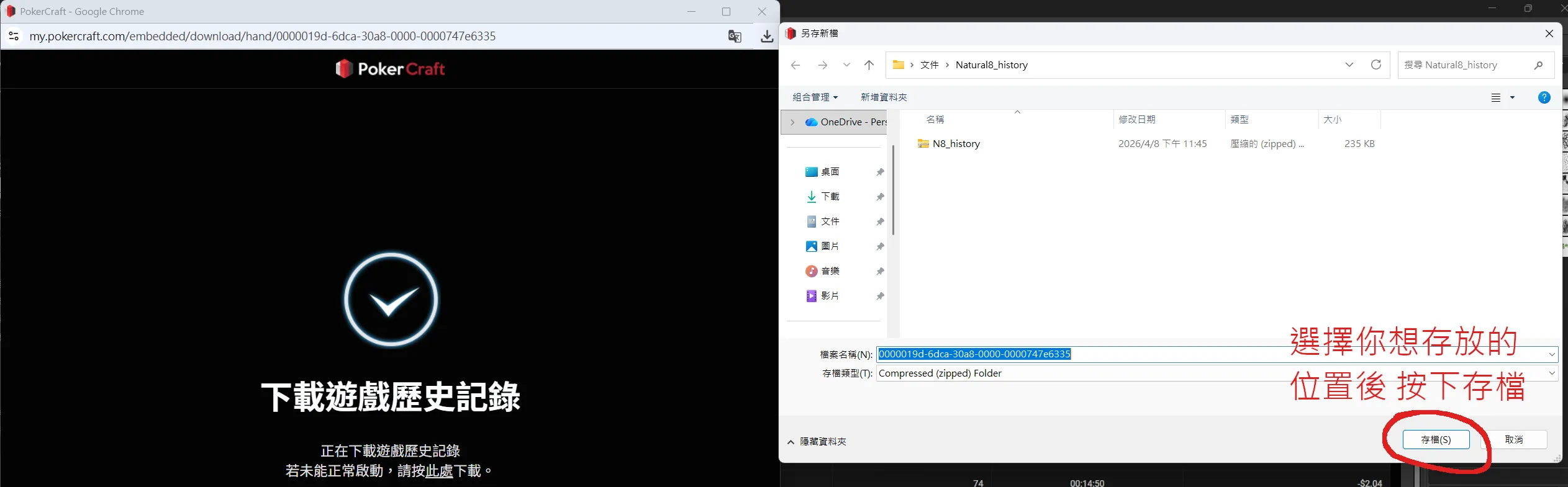
A closer look at the save step:
The .zip you just saved (sometimes it is a .txt) is the complete record of your time at the tables, and you can do whatever you like with it.
With RushCraft for Windows, click “Import hand history” on the main screen and pick this file — a .zip does not need unzipping first. Once the import finishes, your statistics and leak diagnosis are already computed.
If all you want is to ask about one particular hand, Lite Coach takes a different route: upload a screenshot of that hand, with no hand history download needed.